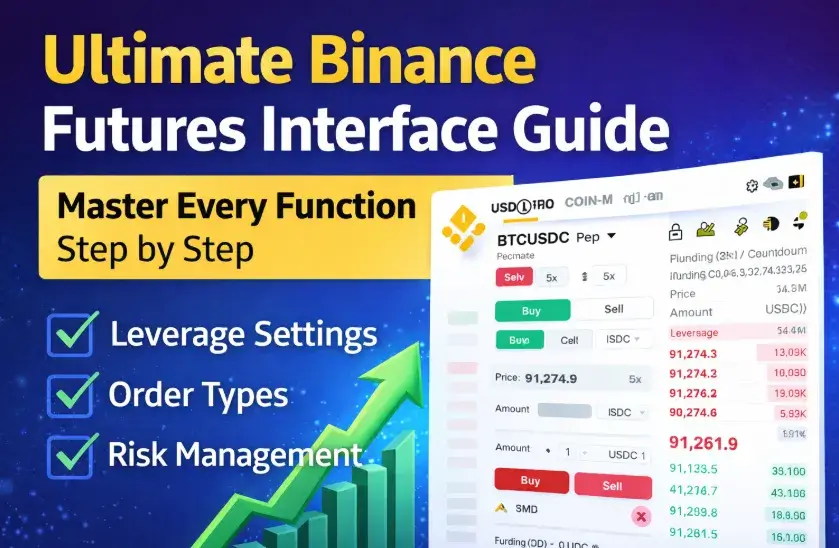
Chapter 1. Meta Description
A beginner-friendly explanation of the Binance Futures trading interface. Learn how to use leverage, margin modes, order types, funding fees, and risk management like a professional trader.
Chapter 2. Binance Futures Trading Screen Explained: A Step-by-Step Guide for Beginners
Entering the world of crypto futures trading can feel overwhelming at first. The Binance Futures interface is packed with numbers, buttons, and trading tools that may look confusing to new users.
Many beginners start trading without fully understanding what each section means. Unfortunately, this often leads to unnecessary losses, liquidation, or emotional trading mistakes.
This guide explains every part of the Binance USDS-M Perpetual Futures trading screen in clear and simple language. By the end of this article, you will understand exactly what each function does and how to use it safely.

1. Trading Mode Selection: USDS-M / COIN-M / Options / Smart Mode
At the very top of the Binance Futures screen, you will see several different trading modes.
Each mode represents a different type of futures product:
- USDS-M Futures – Uses stablecoins like USDT or USDC as margin
- COIN-M Futures – Uses cryptocurrencies such as BTC or ETH as margin
- Options – Traditional options contracts with expiration dates
- Smart Mode – Simplified interface designed for beginners
Most traders use USDS-M Futures, because profits and losses are calculated in stablecoins, making it easier to manage risk.
If you are new to futures trading, it is recommended to stay in USDS-M mode.
2. Trading Pair Information (Example: BTCUSDC Perpetual)
The trading pair section shows which contract you are currently trading.
For example, BTCUSDC Perp means:
- You are trading Bitcoin
- Settlement is done in USDC
- It is a perpetual contract (no expiration date)
Perpetual contracts are designed to closely follow the spot market price through a mechanism called funding fees.
By clicking the pair name, you can switch to other trading pairs such as ETHUSDT, SOLUSDT, or XRPUSDT.

3. Price Change Indicator
Next to the trading pair name, you will see a percentage number such as -0.47%.
This represents the price movement compared to the previous reference period.
It is useful for checking short-term market direction, but it should never be the only factor when deciding to open a trade.
Professional traders always combine this with technical analysis and risk management.
4. Margin Mode, Leverage, and Position Mode
This area contains three very important settings:
Cross Margin vs Isolated Margin
- Cross Margin
- Uses your entire futures wallet balance as collateral
- Lower chance of liquidation
- Higher overall account risk
- Isolated Margin
- Only uses the amount allocated to a specific position
- Better for risk control
- Recommended for beginners
Leverage (Example: 5x)
Leverage determines how large a position you can open compared to your actual balance.
For example:
- 5x leverage means
- A 20% price move against you can lead to liquidation
Higher leverage increases potential profit, but also dramatically increases risk.
Position Mode
- Single Mode (S) – You can only hold either long or short at a time
- Hedge Mode – You can hold both long and short positions simultaneously
Most beginners should start with Single Mode to avoid confusion.

5. Funding Fee and Countdown Timer
Funding fees are a key difference between perpetual futures and regular spot trading.
Every 8 hours:
- Long traders pay short traders, or
- Short traders pay long traders
This depends on the current funding rate.
If funding rate is positive → Long positions pay
If funding rate is negative → Short positions pay
The countdown timer shows how much time remains until the next funding settlement.
Funding fees can significantly affect profits, especially for long-term positions.
6. Buy and Sell Buttons
In futures trading:
- Buy = Open Long Position
- Sell = Open Short Position
This is different from spot trading.
Even if you do not own any coins, you can still open a short position and profit when the price falls.
Understanding this concept is essential before entering futures trading.

7. Available Balance (Avbl)
This section shows how much margin you currently have available in your futures wallet.
If the balance is 0.00 USDC, you must transfer funds from your Spot Wallet before opening any positions.
Always make sure you have enough margin to cover potential losses.
8. Order Types
Binance Futures offers several order methods:
- Limit Order – Execute only at a specific price
- Market Order – Execute instantly at the current market price
- Stop Limit / Stop Market – Used for advanced strategies
Limit orders help avoid slippage, while market orders provide fast execution.
Choosing the correct order type is critical for professional trading.

9. Price Input and BBO Function
The price input field is where you set the desired entry price.
The BBO (Best Bid Offer) button automatically fills in the most competitive current price.
This is useful when placing quick limit orders.
10. Position Size (Amount)
This field allows you to choose how large your position will be.
You can enter the amount in USDC or in contract quantity.
Always calculate your risk before entering any amount.
A common rule is to risk only a small percentage of your account per trade.

11. Order Book
The order book shows real-time market depth:
- Red side – sell orders
- Green side – buy orders
The large number in the center represents the current last traded price.
Reading the order book can help you understand short-term market sentiment.
12. TP/SL (Take Profit and Stop Loss)
This is one of the most important tools in futures trading.
- Take Profit – Automatically close position at a profit
- Stop Loss – Automatically limit your losses
☞ Binance Take Profit and Stop Loss
Never open a futures trade without setting a stop loss.
Risk management is more important than predicting market direction.

13. Reduce Only Option
When enabled, this option ensures that:
- Orders will only reduce your existing position
- No new opposite positions will be opened by mistake
It is very useful for safe position management.
14. Order Validity (GTC, IOC, FOK)
Different time-in-force options are available:
- GTC – Good Till Cancelled
- IOC – Immediate or Cancel
- FOK – Fill or Kill
Most regular traders use GTC orders.

15. Max and Cost Calculation
- Max – Maximum position size you can open
- Cost – Required margin for the trade
Entering with “Max” is extremely risky and not recommended for beginners.
Always leave room for market fluctuations.
16. Buy / Long Button
Once all settings are complete, pressing this button will open your position.
If you switch to short trading, this button will change to “Sell / Short.”
Double-check everything before clicking.
17. Positions, Open Orders, and Bots
This area lets you monitor:
- Active positions
- Pending orders
- Automated trading bots
Regularly checking this section helps you stay in control of your trades.

18. Available Funds
This shows the actual usable balance remaining in your futures wallet.
Always maintain enough funds to avoid forced liquidation.
19. Chart Section
By expanding the chart window, you can analyze price movements while watching the order book.
Using charts effectively is essential for successful trading.

20. Additional Resources for You
⚙️ Practical Trading Skills on Hyukee.com
Master the specific interface steps to flip your market direction in seconds.
Learn how to use the interface’s risk tools to protect your capital and manage TP/SL orders.
Don’t let fees drain your account. Set up your fee discounts before you start trading.
💡 Editor’s Note: Maximizing Your Trading Setup
If you’re planning to start trading on Binance, using a partner referral link is the most effective way to reduce long-term costs. You can secure a 20% fee rebate applied directly to your account.
Apply 20% Discount to My Account →21. Final Thoughts: What Really Matters
The Binance Futures interface contains many tools, but beginners should focus on three key points:
- Liquidation is calculated using Mark Price, not Last Price
- Funding fees affect long-term profitability
- Proper risk management matters more than leverage
Futures trading is not about guessing direction.
It is about controlling risk and managing positions wisely.
22. Frequently Asked Questions
Q1. Is Binance Futures safe for beginners?
Yes, but only if you start with low leverage, use stop loss, and trade small position sizes.
Q2. What leverage should new traders use?
It is recommended to stay between 3x and 5x until you gain experience.
Q3. What is better: Cross or Isolated margin?
Isolated margin is safer for beginners because losses are limited to a single position.
Q4. Can I lose more than my balance?
No. Binance liquidation system prevents losses beyond your margin.
Q5. Should I always set a stop loss?
Absolutely. Trading without a stop loss is one of the most common reasons for large losses.